> For the complete documentation index, see [llms.txt](https://docs.podplay.app/llms.txt). Markdown versions of documentation pages are available by appending `.md` to page URLs; this page is available as [Markdown](https://docs.podplay.app/payments/charge-errors.md).
# Charge Errors
### Overview
A Customer's credit card may not work when purchasing, so the PodPlay system has notifications in place for every charge-failure scenario. Depending on the reason, either the Customer or the Admin is notified immediately, and in all cases an audit trail of the error is recorded for an Admin to review on the Purchase Page of the Dashboard.
### Customers in Booking Flow
How the system handles a failed card depends on when the Customer is booking. During the booking flow the Customer is stopped immediately. For bookings made further out, the hold runs later and the outcome depends on whether your Club has a front desk.
When a card fails while the Customer is booking a Reservation or signing up for an Event, a notification appears immediately, the Customer cannot complete the booking, and they see one of these messages:
* `Your cc zip code is incorrect; please update your cc and try again`
* `Your cc CVC is incorrect; please update your cc and try again`
* `This card does not work; please change your cc and try again`
The system prompts the Customer to update the card on file. Once updated, they can complete the booking.
#### How timing changes what happens
The system's default behavior changes based on how far out the Reservation or Event is.
* **Less than 6 days out:** The system tries to place a hold on the card at booking. If the hold fails, the Customer sees one of the messages above on the final page of the booking flow and is asked to update their card and try again.
* **More than 6 days out:** The system lets the Customer book the Reservation or join the Event, then places the hold 24 hours before it starts. The delay is due to the legal classification of the product type: sports entertainment. If the hold succeeds, everything proceeds normally. If it fails, handling depends on your Club's setup:
* **Clubs with a front desk**: the Customer is emailed that their card did not work and should be updated as soon as possible. Front desk staff can charge the Customer when they arrive. See Admin intervention during charge errors.
* **Clubs without a front desk (Autonomous Clubs)**: the Customer is emailed that their card did not work, that they should update it, and that they need to sign up or book again. The system removes the Customer from the Event or cancels the Reservation because the hold failed. Autonomous Clubs have no front desk staff to engage the Customer on arrival. In both more-than-6-days cases, the system does not notify the Waitlist. The Waitlist is notified only when a Customer cancels their participation in an Event.
To learn more, read about the [**Hold-on-Card Process**](https://podplay.gitbook.io/docs/payments/customer-payments/hold-on-card-process).
#### Spotting a failed card at the Club
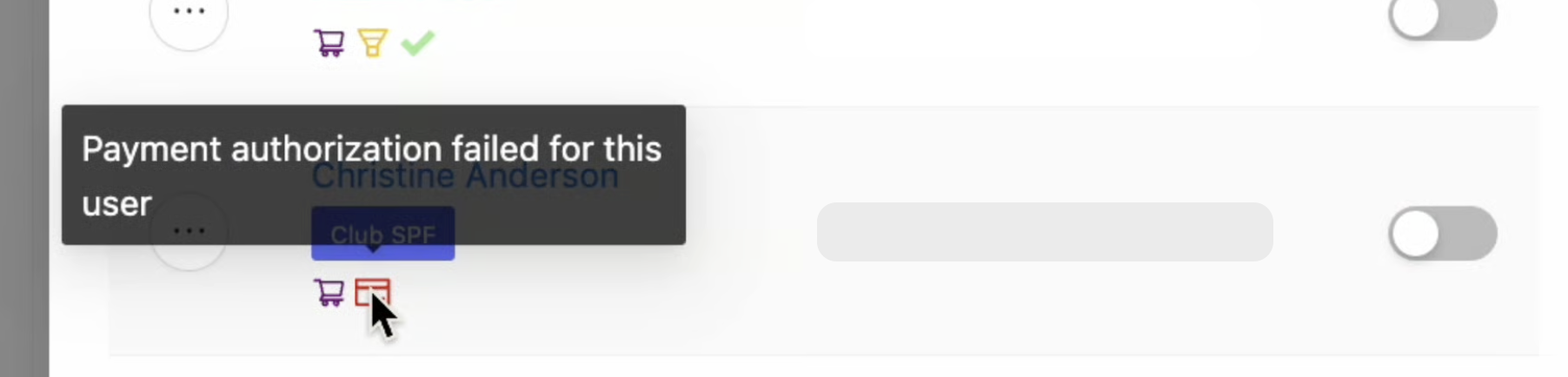
On the Reservation or Event attendee list, a Customer whose card failed appears highlighted in red (monitoring the Overview page and clicking on the upcoming Events or Reservations is the easiest way to catch a card issue early).
Hovering over the red card icon shows a tooltip explaining the failure.
Front desk staff can then ask the Customer to update their card and charge them for the Reservation or Event.
Staff also see an audit trail on the Purchases page of the Dashboard. A failed charge is visible there with its source listed as Booking or Event Signup, both initiated by a Customer.
### Membership Subscription Failures
**When a Customer buys a Membership** in your Club's App, if there are any issues with their card, the system will not provide them with the Membership and will prompt them to update their card on file before trying to purchase the Membership again.
**When a Customer has a Membership and the subscription charge fails** because of insufficient funds, has the wrong zip code or CVC on file, or there's an authentication failure, the system notifies the Customer by email that their Membership charge failed. The email sent to the Customer is [automated](https://podplay.gitbook.io/docs/marketing/automated-emails#membership) and informs the Customer to update their card as soon as possible, and the Customer then enters a [GRACE/HOLD period](https://podplay.gitbook.io/docs/memberships/grace-hold-periods). The failure is then recorded on the Purchase Page of the Dashboard.
### Failed Charges from Dashboard
When stafff charges a Customer from the Dashboard and the card on file does not work, a unique flag appears on the Purchase tab of the Event or Reservation reading "Charge Failed."
Inside the Purchase Page of the Dashboard, the flag reads "Charge Failed" and "Customer Service," indicating that staff attempted the charge.
When this happens, staff at the front desk can ask the Customer to update their card and try again. If the second attempt fails, the Customer's bank has likely stopped the charge as a fraud-protection measure, or a different card is needed. Staff cannot always see the reason directly, Stripe surfaces the bank's two stated reasons inside the Customer's Profile, under the Purchase tab, within that specific purchase.
### Review Failed Charges in Dashboard
Staff can review exactly why a charge failed when opening up the details of a charge. To do so:
1. **Open the Purchase tab:** Inside a Reservation, Event, or the Customer's Profile
2. **Click on the charge details:** Click the blue highlighted link in the Purchase Detail column. A new side panel appears.
3. **Scroll to the Payments drawer:** Scroll to the bottom of the side panel until you reach Payments.
4. **Click on the Status Flag:** Click the "Failed" Status Flag header. A new window appears showing why the charge failed.
{% @supademo/embed url="" demoId="cmqv1rill184vqml2hjik0pd0" %}
#### Why a charge failed
* Invalid zip code on the credit card
* Insufficient funds on the card
* Security authentication on the card was not completed
* The Customer's bank sent back a do-not-honor code — this may require the Customer to contact their bank or check their email to release the security hold before the charge can go through
### Reattempt the charge
If you want to try the charge again, you can [charge from the Dashboard](https://podplay.gitbook.io/docs/payments/purchases#charging-from-the-dashboard) or send the Customer a [Payment Link](https://podplay.gitbook.io/docs/payments/charge-errors/generate-a-payment-link#send-a-payment-link-for-a-drafted-charge). Some of the bank and/or security restrictions are outside the PodPlay system and may require the Customer to act before another charge can be completed and captured.
### Intervention on Charge Errors
Sometimes staff will need to step in and help complete the charge; other times, the Customer will need to rectify the charge failure. Here are the different cases:
**Staff must intervene and** [**charge from the Dashboard**](https://podplay.gitbook.io/docs/payments/customer-payments#charging-from-the-dashboard) if the Customer receives a charge failure for:
* A missed hold on Event or Reservation (>6 days) ([related](https://podplay.gitbook.io/docs/payments/charge-errors#spotting-a-failed-card-at-the-club))
* A failed charge for a Coach on a Reservation ([related](https://podplay.gitbook.io/docs/coaches/manage-coach-tiers/coach-payments-and-payouts/coach-wasnt-paid-for-an-event-or-reservation))
* A charge from the Dashboard fails ([related](https://podplay.gitbook.io/docs/payments/charge-errors#review-failed-charges-in-dashboard))
* A failed charge for a Replay ([related](https://podplay.gitbook.io/docs/replays/replays-not-working#charge-failed))
**Customer must retry an action** if there is a [charge failure](https://podplay.gitbook.io/docs/payments/charge-errors#why-a-charge-failed) during:
* Event signup ([related](https://podplay.gitbook.io/docs/events/sign-up-for-an-event#payment-issue-on-sign-up))
* Reservation booking ([same as above](https://podplay.gitbook.io/docs/events/sign-up-for-an-event#payment-issue-on-sign-up))
**The system will attempt another charge** if the charge failure is for a Customer’s:
* Membership subscription charge ([related](https://podplay.gitbook.io/docs/memberships/membership-settings/grace-hold-periods))
How can I help a Customer fix their Membership subscription?
Customers are sent an email when their subscription charge fails. This email asks the Customer to fix their payment method on file. If the Customer does not engage with this email, or wants to engage with it and forgets, staff can assist by contacting (email, text, phone call) the Customer and sharing the below message.
> Hello,
>
> Please know that your membership subscription payment failed. You've now entered a Grace/Hold period where you cannot use your membership perks.
>
> To help you step out of this Grace/Hold period, please:
>
> 1. Find the email that has the subject line "Please Update Your Payment Details"
> 2. Click on the button that says "Update Payment"
> 3. Notice you're in our app
> 4. Click the button that asks you to update your card on file
>
> And now you're all set!
>
> We're here if you have any questions and we'll see you soon!
>
> Your dedicated staff,
>
> Name
---
# Agent Instructions
This documentation is published with GitBook. GitBook is the documentation platform designed so that both humans and AI agents can read, navigate, and reason over technical content effectively. Learn more at gitbook.com.
## Querying This Documentation
If you need additional information that is not directly available in this page, you can query the documentation by asking a question.
Perform an HTTP GET request on the following URL with the `ask` and `goal` query parameters:
```
GET https://docs.podplay.app/payments/charge-errors.md?ask=&goal=
```
`ask` is the immediate question: it should be specific, self-contained, and written in natural language.
`goal` is what the user is ultimately trying to achieve, the reason they need the answer. Sharing it helps GitBook give you a better, more relevant answer. A goal is most helpful when it describes the outcome the user wants rather than restating the question. For example, with `ask=how do I create an API token`, a goal like `automate deployments from our CI pipeline` lets GitBook tailor the answer to that use case.
The response will contain a direct answer to the question and relevant excerpts and sources from the documentation.
Use this mechanism when the answer is not explicitly present in the current page, you need clarification or additional context, or you want to retrieve related documentation sections.